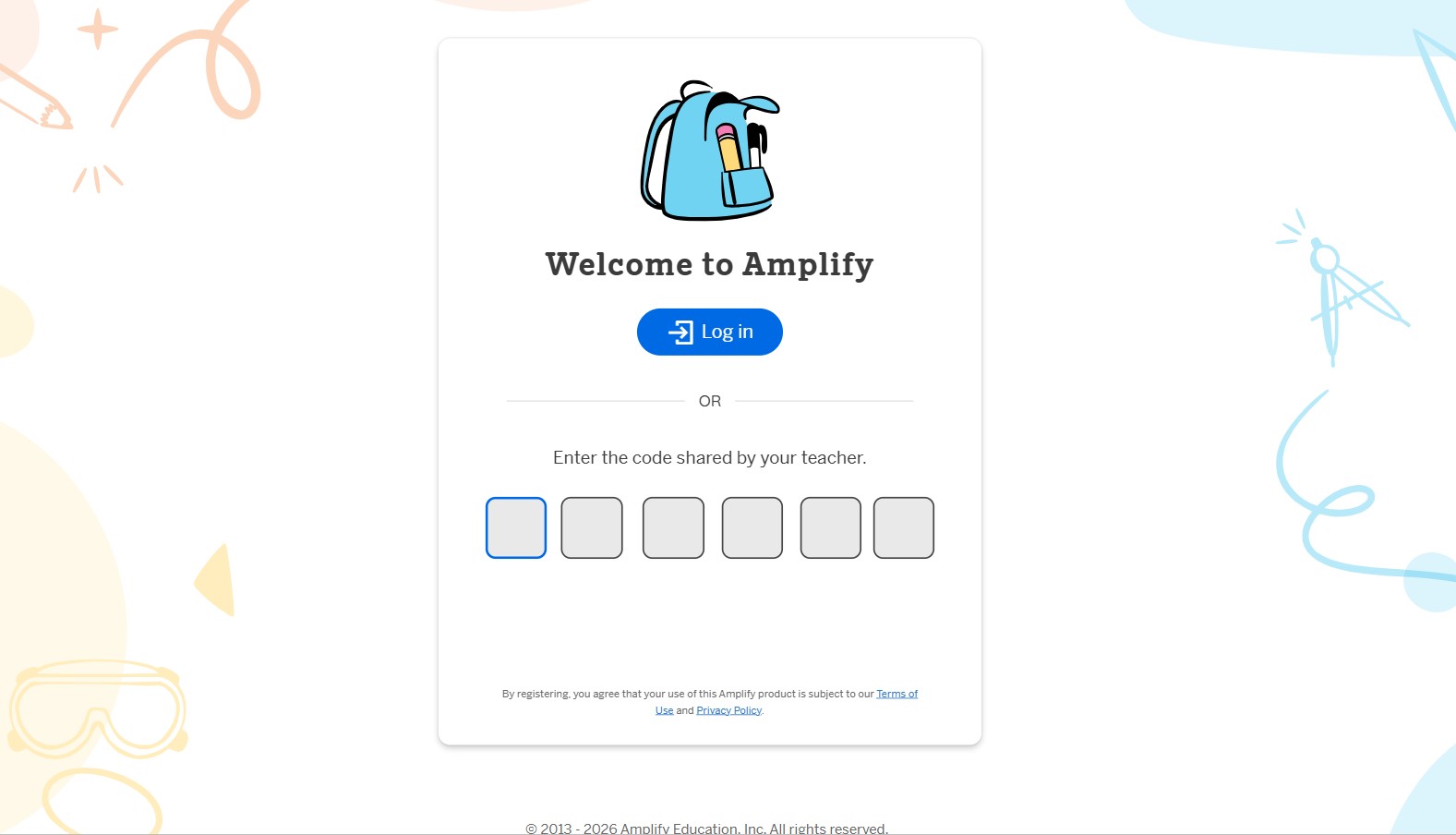
To join Student Amplify, which usually refers to Amplify Classroom or Amplify Education programs, you need a class invitation code or join code provided by your teacher. Without this code, you cannot join a class.
Amplify sign-in is closely integrated with Desmos, so many students start there.
Method 1: Join Student Amplify Using a Class Code (Most Common Way)
Follow these steps if your teacher gave you a class code.
What you need:
-
A class or join code from your teacher
-
Internet access
-
A device like a laptop, tablet, or Chromebook
Steps to join:
-
Go to Desmos or the Amplify login page
Desmos Official Site -
Click I’m a Student
-
Enter the class code your teacher shared
-
Click the Join button when it appears
-
If you do not have an account yet, create a student username and password
-
After registration, log in using Login with Amplify
-
Once logged in, you can access your class and assignments
If the code does not work, it may be expired. In that case, ask your teacher for a new one.
Method 2: Access Amplify Classroom Through Student Home
You can also log in directly through the Amplify student portal.
Steps:
-
Go to the student login page
Amplify Student Login -
Log in using:
-
A Google school account, or
-
A username and password provided by your school
-
-
After login, you will reach Student Home
From Student Home, you can:
-
View your current assignments
-
See completed or past work
-
Access all Amplify curriculum apps
-
Continue lessons assigned by your teacher
How to Join Lessons and Activities Inside Amplify
Once logged in, you may need to join specific lessons.
You can do this by:
-
Clicking the key icon
-
Entering a session code provided by your teacher
-
Opening lessons that include videos, activities, quizzes, and assignments
Your teacher may also sync the class so everyone stays on the same lesson in real time.
What You Can Do Inside Amplify Student Home
Amplify Student Home works as your main dashboard.
You can:
-
See daily assignments in the To-Do section
-
Review completed lessons in Past Work
-
Access curriculum apps under Apps
-
Customize your avatar
-
Track your learning progress
Amplify also integrates with platforms like Google Classroom and Microsoft Teams, which makes access easier for schools.
If “Student Amplify” Means a Different Program
Some schools or colleges use the name AMPlify for mentorship or student development programs, such as programs at St. Michael’s College.
In those cases:
-
You must register through the official program website
-
You may need to create a profile
-
You can access mentor directories
-
You connect with mentors by following program instructions
If you are unsure which Amplify program you need, confirm with your teacher or institution.
Helpful External Resources
-
Amplify official website:
Amplify Education -
Amplify student portal:
student.amplify.com -
Desmos learning platform:
Desmos.com
FAQs
1. Can you join Student Amplify without a class code?
No. You need a valid class or join code from your teacher.
2. What should you do if your class code does not work?
Ask your teacher for a new code, as the old one may be expired.
3. Do you need a Google account to use Amplify?
Not always. Some schools use Google accounts, while others use Amplify usernames.
4. Where do you see assignments after logging in?
You can see them in Student Home under the To-Do section.
5. Can you access Amplify on a mobile phone?
Some features work on mobile, but a laptop or tablet gives the best experience.
6. Is Amplify connected to Google Classroom or Microsoft Teams?
Yes. Many schools integrate Amplify with both platforms.