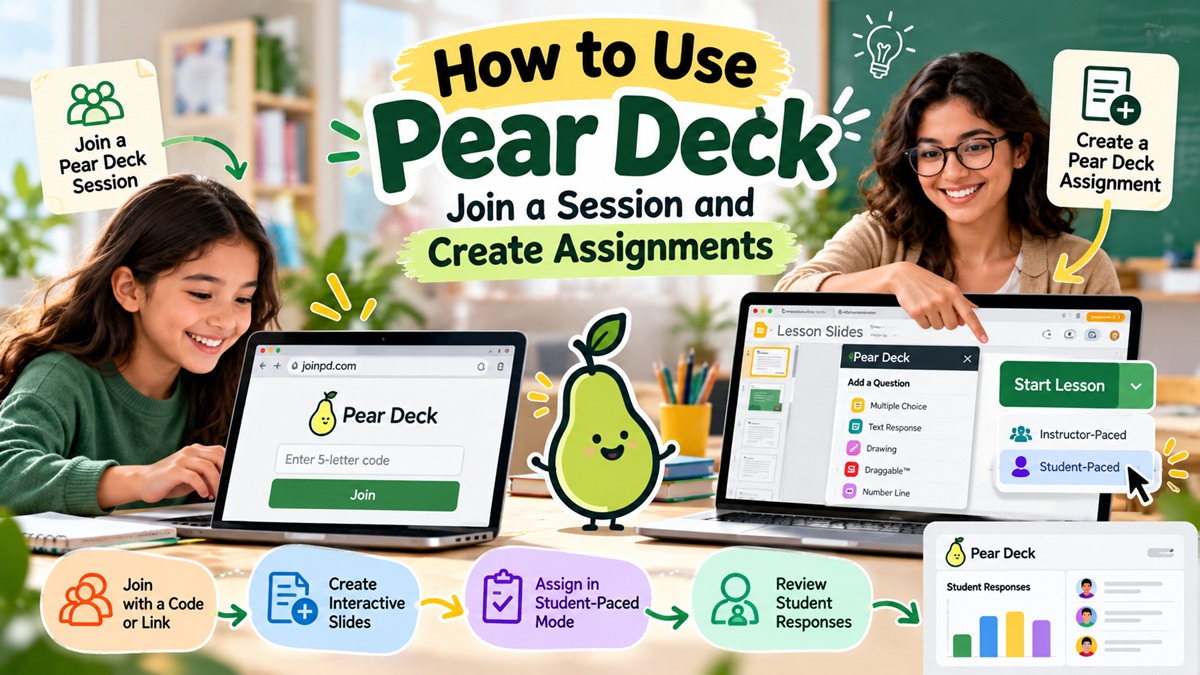
Pear Deck turns an ordinary presentation into an interactive lesson where students can respond to questions, complete activities and follow along with the teacher from their own devices. Teachers can use it during live classroom lessons, remote teaching, quizzes, homework and self-paced activities that students complete outside regular class hours.
If you are using Pear Deck for the first time, the difference between an Instructor-Paced lesson and a Student-Paced activity can initially seem confusing. The process becomes much easier once you understand how students join a session, how teachers launch a lesson and how Student-Paced Mode allows students to work independently.
This guide explains the entire process in simple steps, whether you are a student trying to join a Pear Deck session or a teacher who wants to create an interactive assignment.
What You Will Learn
In this guide, you will learn:
- How students can join a Pear Deck session using a Join Code or Join Link
- Whether students need a Google or Microsoft account to join a session
- What to do when a Pear Deck Join Code is not working
- How teachers can create an interactive Pear Deck lesson
- How to use Student-Paced Mode for homework and independent activities
- How to share a Pear Deck session with students
- How teachers can review student responses through the Teacher Dashboard
- How to stop or close a Pear Deck session when students have finished
How Can Students Join a Pear Deck Session?
Joining a Pear Deck session is relatively simple because students do not necessarily need to create their own Pear Deck account before participating. The teacher first starts a Pear Deck session and then provides students with either a five-letter Join Code or a direct Session Join Link.
Step 1: Open the Pear Deck Join Page
Open a browser on your computer, tablet or other supported device and go to joinpd.com.
Your teacher should provide a five-letter Join Code when the session begins. If the teacher shares a direct Session Join Link instead, you can simply open that link without manually entering the code.
Pear Deck’s official instructions confirm that students can join either by entering the code at joinpd.com or by using the Session Join Link supplied by the teacher.
Step 2: Enter the Pear Deck Join Code
If your teacher has given you a Join Code, enter the five-letter code exactly as it appears on the teacher’s screen.
For example, your teacher might provide a code such as ABCDE. Make sure that you enter all five letters correctly and do not accidentally add spaces or use characters from an old session.
Pear Deck says Join Codes expire after one week, while a Session Join Link can continue to be used, making the direct link more useful when students need access over a longer period.
Step 3: Sign In If the Teacher Requires It
After entering the Join Code, Pear Deck may ask you to sign in with an email account if your teacher has enabled the student login requirement.
Depending on the teacher’s settings, students can join using a Google or Microsoft Office 365 account, or they may be allowed to participate anonymously using an assigned nickname and avatar.
This means you should not assume that every Pear Deck session requires a school account.
If your teacher has enabled email login, use the account type requested by the teacher. If anonymous participation is enabled, you can join without providing your email address.
Step 4: Start the Interactive Lesson
Once you successfully join the session, Pear Deck opens the Student View, where you can see the teacher’s presentation and respond to interactive questions.
Depending on how the teacher has configured the lesson, you may be asked to select an answer, type a response, draw something on the screen or complete another interactive activity.
If the lesson is Instructor-Paced, your screen generally follows the teacher’s presentation as the teacher moves from one slide to another.
What Is the Difference Between Instructor-Paced and Student-Paced Mode?
The difference between these two modes is important because they are designed for different teaching situations.
Instructor-Paced Mode is designed for live lessons where the teacher controls the presentation. When the teacher moves to another slide, students’ screens move along with the presentation, making this mode suitable for classroom teaching, video calls and other real-time lessons.
Student-Paced Mode works differently because students can move through the presentation independently and answer interactive questions without waiting for the teacher to advance each slide. This makes it useful for homework, quizzes, remote learning, missed lessons and activities that students need to complete on their own schedule.
What Should You Do If the Pear Deck Join Code Does Not Work?
A Join Code can stop working for several reasons, so there is no need to assume that something is wrong with your device immediately.
First, check the code with your teacher and make sure that you have entered all five letters correctly. If you are using an older code, ask whether the teacher has started a new session because Pear Deck Join Codes expire after one week.
You should also check whether you are signed into the correct Google or Microsoft account if the teacher has required email login. Pear Deck specifically notes that having multiple Google accounts signed in at the same time can sometimes cause problems when using the platform.
If the problem continues, refresh the browser and try joining again using the latest Join Code or Session Link provided by your teacher.
How Can Teachers Create a Pear Deck Assignment?
Teachers can use Pear Deck’s Student-Paced Mode to turn an interactive presentation into an activity that students complete independently.
This is particularly useful when the teacher wants to assign homework, provide a quiz, allow students to complete a missed lesson or let students work through an interactive presentation without the teacher controlling every slide.
The basic process begins with creating your presentation and adding interactive questions before starting the Pear Deck session.
Step 1: Create Your Pear Deck Slides
Teachers can create Pear Deck presentations using the Pear Deck add-on for Google Slides or the Pear Deck add-in for PowerPoint Online.
After opening your presentation, use the Pear Deck tools to add interactive elements such as multiple-choice questions, text responses, drawing activities and other prompts that allow students to participate directly from their devices.
Pear Deck presentations can be created and saved through the tools teachers already use for their presentations, making it possible to turn an existing lesson into an interactive activity rather than creating every slide from scratch.
Step 2: Start the Pear Deck Lesson
Once your presentation is ready, open the Pear Deck sidebar and select the green Start Lesson or Present Lesson button, depending on whether you are using Google Slides or PowerPoint Online.
Pear Deck then gives you the option to choose between Instructor-Paced and Student-Paced Mode.
For a normal live classroom lesson, Instructor-Paced Mode allows you to control the presentation and keep students’ screens synchronized with your presentation.
For an assignment that students should complete independently, choose Student-Paced Mode.
Step 3: Turn the Lesson Into a Student-Paced Activity
When you select Student-Paced Mode, students can move through the slides independently rather than waiting for the teacher to advance the presentation.
This is one of the most useful Pear Deck features for teachers because the same interactive presentation can be used during a live lesson and later made available as independent work. Pear Deck specifically lists homework, quizzes, remote learning and missed lessons among the situations where Student-Paced Mode can be useful.
Once Student-Paced Mode is active, students can use the Session Join Code or Join Link to enter the presentation and work through the slides at their own pace.
Step 4: Share the Assignment With Students
After starting the session, Pear Deck provides a five-letter Join Code and a Session Join Link that teachers can share with students.
You can give students the Join Code and ask them to visit joinpd.com, or you can share the direct Session Link so they can open the activity without manually entering the code.
The direct link can be particularly useful for homework because students can simply open the link from wherever you have posted it.
Teachers can share the link through platforms such as Google Classroom, Canvas, Schoology, Microsoft Teams or email, depending on the tools used by their school.
Step 5: Let Students Complete the Activity
Once students enter a Student-Paced session, they can move through the slides using the navigation controls available in their Student View.
Unlike an Instructor-Paced lesson, students do not have to wait for the teacher to move forward.
This makes Student-Paced Mode suitable for students who work at different speeds or need additional time to complete an activity. It can also be useful when a student misses a class and needs to complete the same lesson later.
Pear Deck automatically saves student responses within the session, so teachers do not need to manually save each individual answer.
How Can Teachers Review Student Responses?
Teachers can review responses through the Pear Deck Teacher Dashboard, which provides a more detailed view of student participation and answers.
The Dashboard can show student names next to their responses when student login is enabled, and teachers can use it to review work during or after a session. Pear Deck identifies the Teacher Dashboard as a Premium feature.
To open the Dashboard, teachers can access it when starting a lesson, through the navigation controls or from the Sessions area.
The Dashboard is particularly useful when a Student-Paced activity has been assigned as homework because the teacher can review responses after students have completed the activity.
How Can You Close a Pear Deck Assignment?
When you no longer want students to continue responding, you can stop the Student-Paced session from the Pear Deck interface.
Pear Deck describes sessions as having different statuses, including Live, Student-Paced and Closed. When a Student-Paced session is closed, students can no longer continue participating in that session.
You can manage the session from your Sessions area and use the available controls to turn off Student-Paced Mode or close the session.
This is useful when you have reached the assignment deadline and want to prevent additional responses from being submitted.
Can Students Complete a Pear Deck Assignment at Home?
Yes, Student-Paced Mode is specifically designed to allow students to work through a Pear Deck session independently, including from home.
Students still need an internet connection because Pear Deck does not work offline, and whether they need to sign in with a Google or Microsoft account depends on the teacher’s login settings.
For homework, teachers can simply share the Session Join Link or Join Code and provide a deadline for completing the activity.
Pear Deck Join Code vs Session Link
There is an important difference between the two options that teachers should understand.
A Join Code is a five-letter code that students enter at joinpd.com, while a Session Join Link can be shared directly with students so they do not have to type the code themselves.
Pear Deck states that Join Codes expire after one week, whereas the Session Join Link does not expire in the same way. Therefore, the direct link can be a better option when students need access to a Student-Paced activity over a longer period.
Common Pear Deck Problems and Their Solutions
The Join Code is not working
Check whether you have entered the latest five-letter code and confirm with your teacher that the session is still available. Join Codes expire after one week, so an older code may no longer provide access.
Pear Deck is asking for an account
Your teacher may have enabled the requirement for students to join with an email account. In that situation, use the Google or Microsoft account type selected by the teacher.
You are signed into multiple Google accounts
If you have personal and school Google accounts open in the same browser, make sure you are using the account associated with your Pear Deck setup or the account required by your teacher. Pear Deck specifically recommends checking account profiles when users experience login problems.
Students cannot move through the slides independently
Check whether the session is actually running in Student-Paced Mode. Instructor-Paced Mode keeps students’ screens synchronized with the teacher’s presentation, while Student-Paced Mode allows students to navigate through the slides independently.
Students cannot access the assignment after some time
If you are using an old Join Code, remember that Pear Deck says Join Codes expire after one week. For longer access, share the Session Join Link instead.