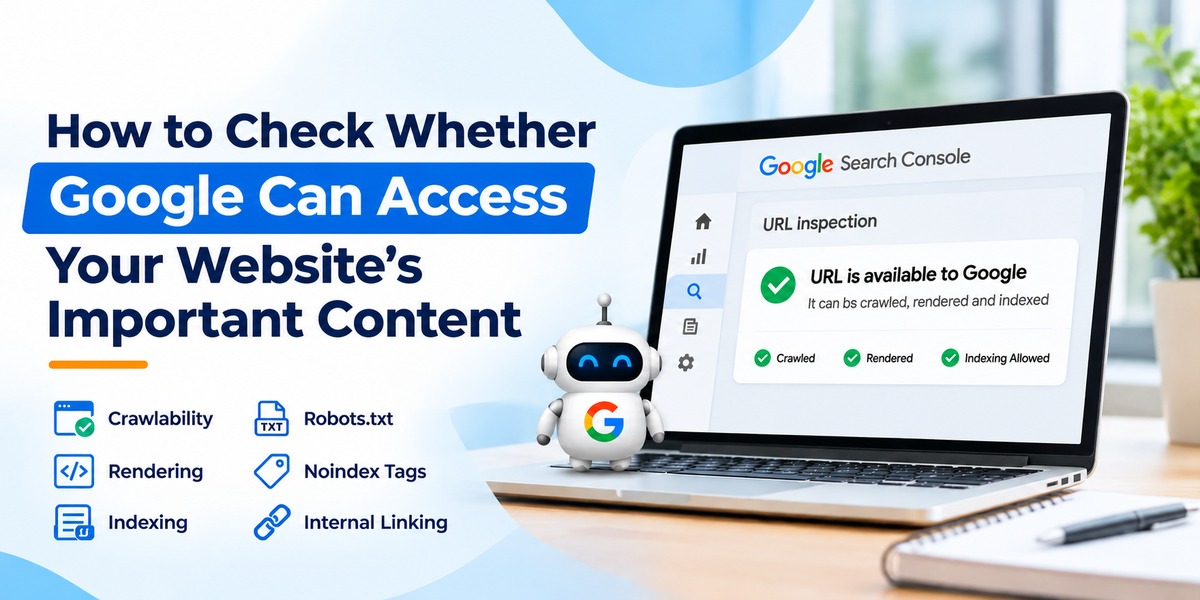
Your website may look perfectly fine when you open it in a browser, but that does not necessarily mean Google can access everything on the page. Important text, navigation links, images and other resources may be blocked, hidden behind JavaScript or unavailable because of technical configuration issues.
This can create a problem for search visibility. Google needs to crawl a page, process its content and understand its structure before it can consider that page for indexing.
For businesses investing in SEO, this makes one question particularly important: can Google actually access the information you want it to find?
In this guide, we explain how to check whether Google can access your website’s important content, which Google Search Console tools to use, what technical issues to look for and how to fix common accessibility problems.
1. Understand the Difference Between Crawling, Rendering and Indexing
Before checking your website, it is important to understand three separate stages of Google’s search process.
Crawling is when Googlebot discovers and requests a URL. Google attempts to access the page and retrieve its content.
Rendering is when Google processes the page, including executing JavaScript where necessary, to understand the content users would see.
Indexing is when Google analyses the processed information and decides whether the page should be stored in its search index.
These stages are connected, but they are not the same.
For example, Google may successfully crawl a page but fail to display some of its JavaScript-generated content. Similarly, a page may be accessible and render correctly but still not be selected for indexing.
Google explains these processes in its official SEO documentation for JavaScript websites.
This distinction matters because a page that is technically accessible is not automatically guaranteed to appear in search results.
2. Use Google Search Console’s URL Inspection Tool
The first place to investigate accessibility problems is Google Search Console.
The URL Inspection tool allows website owners to check Google’s indexed information about a URL and run a separate live test to understand whether the current page can be accessed.
Here is how to use it.
- Open your Google Search Console account.
- Select the website property you want to investigate.
- Copy the complete URL of an important page.
- Paste it into the URL Inspection search bar.
- Review the information from Google’s index.
- Click Test Live URL to check the current version of the page.
Pay particular attention to three results:
| Inspection field | What you should check |
|---|---|
| Crawl allowed? | Should show Yes |
| Page fetch | Should show Successful |
| Indexing allowed? | Should show Yes if the page is intended for indexing |
If crawling is not allowed, investigate robots.txt restrictions.
If the page fetch fails, investigate server errors, redirects, access restrictions or other fetching problems.
If indexing is not allowed, check for a noindex directive in the page’s HTML or HTTP response headers.
Google provides a detailed explanation in its official guide: Check if a URL or image is available to Google.
Important: A successful live test does not guarantee indexing. It checks current accessibility and certain technical conditions, but Google’s indexing systems make additional decisions.
3. Check Whether Google Can See Your Actual Page Content
A page can return a successful HTTP response while still having content visibility problems.
For example, a website might display its main heading, service descriptions and navigation links through JavaScript. If the important content is not available in the rendered page, Google may not understand the page as intended.
To investigate this:
- Inspect the URL in Google Search Console.
- Click Test Live URL.
- Open View Tested Page.
- Review the screenshot of the rendered page.
- Check the rendered HTML and other available information.
Look for the following:
- Is the main H1 heading visible?
- Can Google see the main page description?
- Are important service or product details present?
- Are internal links visible and accessible?
- Are important images loading?
- Is the main content missing or replaced by an empty section?
- Are there JavaScript errors or failed resource requests?
The screenshot is useful for a visual comparison, but it should not be your only test. Also inspect the rendered HTML and resource information.
Google’s URL Inspection documentation explains how to view screenshots, loaded resources, JavaScript output and other information from the live test.
4. Check Whether Robots.txt Is Blocking Important Content
A robots.txt file provides crawling instructions to search engine bots.
An incorrectly configured rule can prevent Googlebot from accessing important pages or resources.
For example, consider this rule:
User-agent: *
Disallow: /services/
This tells compliant crawlers not to crawl URLs under the /services/ path.
If your important service pages are located in that directory, Google may not be able to crawl them normally.
You should also check whether important CSS or JavaScript resources are blocked. Google needs access to relevant resources to render pages correctly.
To check your robots.txt file:
- Open your website’s robots.txt URL, usually
https://example.com/robots.txt. - Review all Disallow rules.
- Check whether important website sections are included in blocked paths.
- Inspect affected pages using URL Inspection.
- Review whether important resources are accessible.
You can also use Google’s robots.txt documentation to understand how the rules work.
One common mistake: robots.txt and noindex serve different purposes. Robots.txt controls crawling; it is not a reliable method for removing a page from Google’s index. If Google cannot crawl a page, it may not see a noindex directive on that page.
5. Look for Noindex Tags and HTTP Header Restrictions
Sometimes Google can access a page but is explicitly instructed not to index it.
This commonly happens when a developer, SEO plugin or website administrator accidentally adds a noindex directive.
For example:
<meta name="robots" content="noindex">This tells search engines not to index the page.
You may also encounter an HTTP response header:
X-Robots-Tag: noindexUnlike a meta robots tag, this instruction can be applied through the server response and may also affect non-HTML resources.
How to check for noindex
You can inspect a page’s HTML source and search for:
noindexrobotsgooglebot
Also check the response headers using browser developer tools or a suitable HTTP inspection tool.
For WordPress websites, review the page’s SEO plugin settings. Plugins such as Yoast SEO and Rank Math allow administrators to control whether individual pages can be indexed.
Check both the page-level setting and the website-wide search visibility configuration.
If the page should appear in Google, remove the unintended noindex directive, publish the change and run another live URL test.
6. Check Whether JavaScript Is Hiding Important Content
JavaScript is commonly used to create interactive websites, dynamic navigation, tabs, accordions and other page elements.
However, the way content is delivered matters.
Consider a service page where the initial HTML contains only a basic layout, while the main service description is loaded later through JavaScript.
Google can render JavaScript, but rendering may happen separately from the initial crawling process. It can also be affected by blocked resources, execution errors and implementation problems.
For this reason, important information should not depend unnecessarily on complicated client-side interactions.
What should you check?
- Is the main page content present in the rendered HTML?
- Does the page display its content without requiring a user interaction?
- Are important scripts loading successfully?
- Are JavaScript files blocked by robots.txt?
- Are there errors in the browser console or Google inspection output?
- Are internal links generated in a way that Google can discover?
For important business pages, consider server-side rendering or pre-rendering when appropriate. These approaches can make content available in the initial HTML response rather than relying entirely on client-side rendering.
Google’s JavaScript SEO Basics explains how Google processes JavaScript and what website owners should consider.
7. Verify Whether Important Images and Other Resources Are Accessible
Website content is not limited to written text.
Images, CSS, JavaScript and other resources can help Google understand the page and its presentation.
For example, a product page may contain a detailed description, but its main product image could fail to load because of an incorrect URL, access restrictions or a server issue.
Check:
- Whether important image URLs return a successful response.
- Whether images are blocked by robots.txt.
- Whether image URLs use the correct HTTPS address.
- Whether images load without authentication.
- Whether important images have descriptive alt text.
- Whether the page’s CSS and JavaScript resources load correctly.
For images that are important to the page, use meaningful file names and descriptive alternative text.
For example:
<img
  src="/images/technical-seo-audit.jpg"
  alt="Technical SEO audit showing website crawl and indexing issues">
Alt text helps describe the image’s content. It should be accurate and natural rather than filled with keywords.
Google’s image SEO best practices provide further guidance.
8. Check the Canonical URL and Internal Linking Structure
Even if Google can access a page, it may decide that another URL should represent the same or substantially similar content.
This is where canonical tags become important.
For example, a website might have two versions of a page:
https://example.com/seo-services/
https://www.example.com/seo-services/
If both versions are accessible, Google may identify one as the canonical version.
A canonical tag can indicate the preferred URL:
<link rel="canonical" href="https://example.com/seo-services/">However, adding a canonical tag does not guarantee that Google will select that URL. Google considers multiple signals when determining canonical URLs.
You should also check whether important pages are linked from relevant sections of your website.
A page that exists in the sitemap but has no meaningful internal links may be harder for Google to discover and understand in the context of your website.
For a stronger internal linking structure:
- Link important service pages from relevant blog articles.
- Connect related articles within the same subject area.
- Use descriptive anchor text.
- Avoid unnecessary links to duplicate or irrelevant pages.
- Make sure important pages are reachable through normal navigation or contextual links.
9. Use the Page Indexing Report to Find Larger Problems
Checking individual URLs is useful, but it does not provide a complete picture of your website.
For a broader investigation, open the Page Indexing report in Google Search Console.
This report helps identify URLs that Google has indexed and URLs that have not been indexed.
Pay attention to statuses such as:
| Status | What it may indicate |
|---|---|
| Crawled – currently not indexed | Google crawled the page but did not index it |
| Discovered – currently not indexed | Google discovered the URL but has not crawled it yet |
| Blocked by robots.txt | A robots.txt rule prevents crawling |
| Excluded by noindex tag | The page explicitly prevents indexing |
| Alternate page with proper canonical tag | Google recognises another preferred URL |
| Server error (5xx) | The server failed to return the requested page successfully |
These statuses require different solutions.
For example, a page marked Crawled – currently not indexed is not necessarily suffering from an accessibility issue. Google may have accessed the content but decided not to include it in the index.
Similarly, Discovered – currently not indexed does not automatically mean that the page is blocked.
Google explains these reports in its Page Indexing documentation.
10. Create a Regular Google Accessibility Audit Checklist
Website owners should not wait until organic traffic declines to investigate whether Google can access their important content.
A regular technical SEO review can help identify problems before they affect a larger section of the website.
Here is a practical checklist:
| Check | What to verify | Frequency |
|---|---|---|
| URL Inspection | Important pages can be fetched | Monthly |
| Rendered content | Main text and links are visible | After major page changes |
| Robots.txt | Important sections are not blocked | After technical changes |
| Noindex directives | Important pages allow indexing | Monthly |
| JavaScript rendering | Dynamic content is available | After development changes |
| Image accessibility | Important images load correctly | After redesigns |
| Canonical tags | Preferred URLs are correct | Monthly |
| Page Indexing report | Unexpected indexing exclusions | Monthly |
| Internal links | Important pages are discoverable | Quarterly |
| Sitemap | Important canonical URLs are included | After major content updates |
For websites with frequent content updates, large product catalogues or multiple landing pages, these checks should be included in the regular technical SEO workflow.
Common Mistakes That Prevent Google From Accessing Important Website Content
Some technical issues are easy to overlook because they do not necessarily affect how a website appears to visitors.
Here are several mistakes worth checking:
Blocking important folders in robots.txt: A broad Disallow rule can prevent Google from accessing important sections or resources.
Accidentally enabling noindex: A staging configuration or SEO plugin setting may remain active after a page is published.
Loading important content only after user interaction: Content that appears only after a click or another interaction may not be available in the rendered page as intended.
Using incorrect canonical URLs: A page may point Google towards another URL that is not the intended preferred version.
Ignoring server errors: Temporary or repeated 5xx responses can interfere with crawling.
Assuming sitemap submission guarantees indexing: A sitemap helps Google discover URLs, but it does not guarantee that every submitted page will be crawled or indexed.
Checking only the desktop appearance: A website should also be tested for mobile rendering and mobile usability.